USAJobs App Review 2026: Features, Pros, and Cons
 Brad Tachi10 min read
Christopher was selected for GS-13 on his first-ever USAJOBS application.
Christopher, E-7, Coast Guard, now writes policy for the work he did on active duty
Why the USAJobs App Matters for Your Federal Job Search
You are applying for federal jobs from your phone. Maybe you are on terminal leave. Maybe you are sitting in the parking lot after a TAP class. Maybe you are between shifts at your first civilian job. Maybe you just want something better and finally have 10 minutes to look.
The USAJOBS mobile app lets you search, save, and apply for federal jobs from your phone. It has been around for years. But many veterans I talk to either do not know it exists or downloaded it once and gave up.
I spent 1.5 years after separating as a Navy Diver applying for federal jobs with zero callbacks. If the app had worked well back then, it would have saved me hours of sitting at a laptop refreshing USAJOBS.gov. But the app has real limits that you need to know before you rely on it.
This is a full review of the USAJOBS mobile app in 2026. What it does well. Where it falls short. And how to use it without wasting time. If you want a broader review of the USAJOBS platform itself, check out our full USAJOBS review for veterans.
What Does the USAJobs App Actually Do?
The app is free on both iOS and Android. It connects to the same USAJOBS.gov database that the desktop site uses. Every federal job posting on the website shows up in the app too.
Here are the core features you get:
- Job search with filters: Search by keyword, location, pay grade, agency, and job series. The same filters as the website.
- Saved searches: Set up searches and get push notifications when new jobs match your criteria.
- Saved jobs: Bookmark postings to review later. They stay in your saved list until the posting closes.
- Application tracking: See the status of every application you have submitted. Received, Reviewed, Referred, Selected, or Not Selected.
- Profile access: View your USAJOBS profile, uploaded documents, and resumes.
The app mirrors most of what the desktop site does. But "most" is doing heavy lifting in that sentence. There are gaps. Big ones.
App vs Website Login
The USAJOBS app uses your Login.gov credentials. Same account, same login. If you can sign into USAJOBS.gov on your laptop, you can sign into the app with the same email and password.
What the USAJobs App Does Well
The app is not useless. For specific tasks, it actually works better than opening a browser on your phone. Here is where it earns its keep.
Push Notifications for New Postings
This is the best feature. You set up a saved search. The app sends you a push notification when a new job matches. Federal postings open and close fast. Some are only live for 5 days. Getting an alert on your phone means you see it before the posting closes.
On the desktop site, you get email alerts. But emails get buried. A push notification on your phone is harder to miss. If you are actively job hunting, this feature alone makes the app worth downloading.
Quick Application Status Checks
You applied to 15 federal jobs last month. You want to know if any moved to "Referred." On the desktop site, you have to log in, wait for the page to load, and click through to your applications.
On the app, you open it, tap "Applications," and see the status of everything in one list. It takes about 10 seconds. For veterans who are tracking multiple USAJOBS applications, this quick-check feature saves real time.
Browsing Jobs on the Go
The search works fine for browsing. You can scroll through results, read full job announcements, and save postings for later. If you are commuting, waiting at an appointment, or just killing time, you can scan for new postings without needing a laptop.
The job announcement view is readable on a phone screen. Text wraps well. The duties, qualifications, and how-to-apply sections are all there.
"I used to check USAJOBS on my phone browser and it was painful. The app is faster for one thing: seeing if any of my applications moved. That alone saved me from refreshing my email 20 times a day."
Where the USAJobs App Falls Short
Now for the problems. And there are enough that you should not rely on the app alone for your federal job search.
You Cannot Build or Edit Resumes in the App
This is the biggest gap. The USAJOBS website has a built-in resume builder. The app does not. You cannot create a new resume, edit an existing one, or upload a new resume from your phone through the app.
That means you still need a laptop to do the most important part of applying: building your keyword-optimized federal resume. The app lets you browse and save jobs. But the actual application work happens elsewhere.
The Application Process Is Clunky on Mobile
You can start an application in the app. But the process pushes you to a mobile browser to finish it. You end up bouncing between the app and Safari or Chrome. Forms do not always load cleanly. The USAJOBS questionnaire is hard to fill out on a small screen.
For a simple application with a pre-built resume and no additional documents, it works. But federal applications are rarely simple. You need to upload documents, answer detailed questionnaires, and review everything before submitting. That is laptop work.
Search Filters Are Limited Compared to Desktop
The app has basic filters. Keyword, location, pay grade, agency. But the desktop site gives you more control. You can filter by hiring path (veterans preference, Schedule A, VRA), travel percentage, telework eligibility, and security clearance level.
If you are a veteran using a specific hiring authority, the desktop filters let you narrow results fast. The app makes you scroll through more irrelevant postings.
Document Upload Is Hit or Miss
Uploading your DD-214, transcripts, or SF-50 through the app can be frustrating. The file picker does not always work smoothly. Some file types cause errors. Many veterans report having to switch to the desktop site to finish uploading required documents.
This is a dealbreaker for anyone trying to go fully mobile with their federal job search.
- No resume builder or editor
- Application bounces to browser
- Fewer search filters
- Document uploads unreliable
- No questionnaire completion
- Push notifications for new jobs
- Fast application status checks
- Easy browsing on the go
- Saved searches sync with desktop
- Free with Login.gov account
How Should Veterans Actually Use the USAJobs App?
The app is a tool, not a solution. You would not use a hammer to tighten a bolt. Same idea here. Use the app for what it does well and use other tools for what it does not.
Here is how I would set it up if I were job hunting today:
Use the App for Alerts and Status Checks
Download the app. Sign in. Set up 4-6 saved searches with different keyword and location combinations. Turn on push notifications. Now you will know within hours when a relevant job posts.
Check your application statuses in the app every few days. If something moves to "Referred," that is your signal to start preparing for an interview. Read our guide on what each USAJOBS application status means so you know what to expect.
Use a Laptop for Everything Else
Building your resume, uploading documents, filling out questionnaires, and actually submitting applications. Do all of that on a laptop. The desktop experience is better for the parts that matter most.
When you find a job in the app that looks good, save it. Then sit down at your laptop later to actually apply. Do not try to rush through a federal application on your phone during a lunch break. Federal applications are too detailed for that.
Pair the App with Better Resume Tools
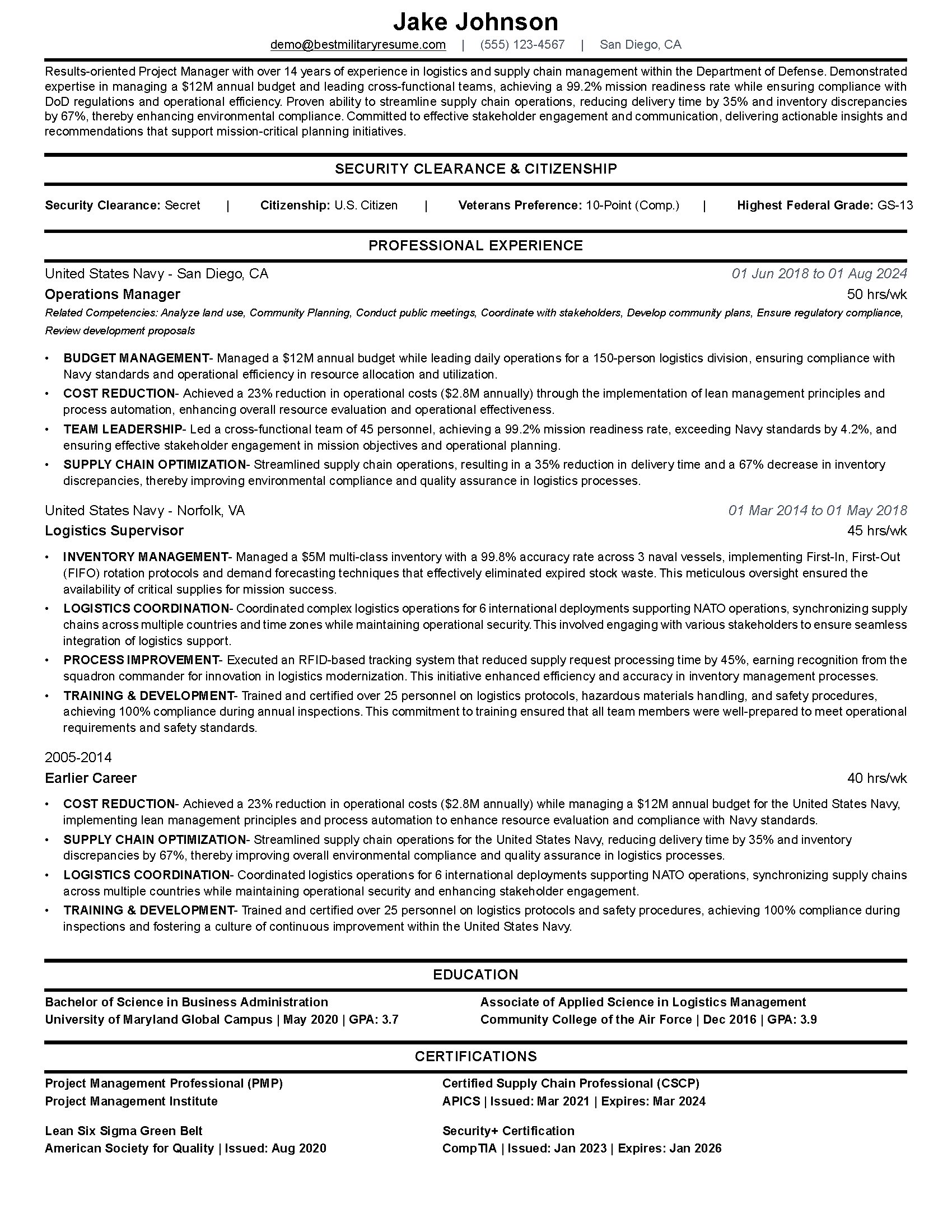
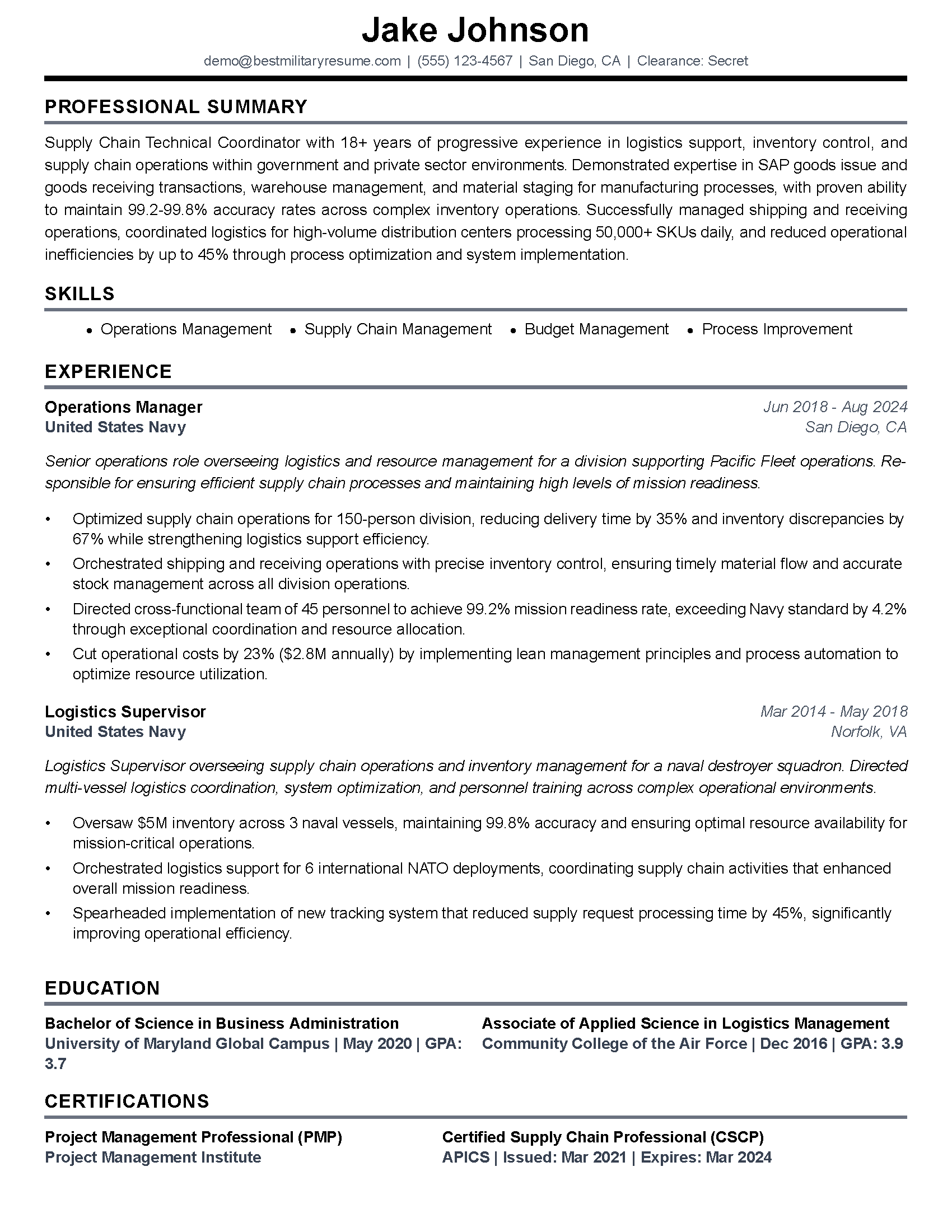
The USAJOBS resume builder (on the desktop site) creates basic resumes. But they are not optimized for the keywords in the specific job posting you are applying to. That is where your resume sinks to the bottom of the list.
The USAJOBS resume builder walkthrough covers every field. But if you want a resume tailored to each posting with the right keywords pulled from the job announcement, use BMR's federal resume builder. It does the keyword matching automatically.
Set Up Saved Searches in the App
Create 4-6 searches with different keywords, locations, and GS levels. Turn on push notifications.
Browse and Save Jobs on Your Phone
When a notification comes in, open the posting. If it looks good, save it. Do not try to apply from the app.
Build Your Resume on a Laptop
Use BMR or the desktop USAJOBS builder to create a tailored resume with the right keywords for each posting.
Apply and Upload Documents on Desktop
Complete the full application, upload your DD-214 and transcripts, and fill out the questionnaire on a full-size screen.
USAJobs App vs the Mobile Website: Which Is Better?
You can also just open USAJOBS.gov in your phone browser. The mobile website is responsive and works on any phone. So why would you download the app?
The app wins in two areas. Push notifications and speed. The mobile website does not send push notifications. You have to set up email alerts, which are slower and easier to miss. The app also loads faster because it caches your profile data locally.
The mobile website wins everywhere else. You get the full filter set. Document uploads work more reliably through a browser. And you can actually use the USAJOBS resume builder on the mobile site (though it is still easier on a laptop).
If you only want status checks and job alerts, download the app. If you want to do real work on your phone, use the mobile website. Best approach: use both.
Should You Use USAJOBS at All? Comparing Your Options
The USAJOBS app is one tool in a bigger toolbox. It only covers federal jobs. If you are also looking at private sector, defense contractor, or state government roles, you need other platforms too.
We wrote a detailed breakdown of USAJOBS vs private job boards for veterans. The short version: USAJOBS is the only way to apply for most federal jobs. But it should not be your only job search tool.
For private sector, LinkedIn, Indeed, and veteran-specific job boards cover different ground. Some veterans focus too hard on USAJOBS and miss opportunities on other platforms. Others skip USAJOBS completely and miss out on federal jobs where their military experience gives them a direct advantage.
The smart play is running searches on both. Use the USAJOBS app for federal alerts. Use LinkedIn and Indeed for everything else. If you are on terminal leave trying to land a job before separation, you need every channel working at once.
Key Takeaway
The USAJOBS app is best as a notification and tracking tool, not an application tool. Download it for alerts and status checks. Do the actual resume building and applying on a laptop.
Common USAJobs App Problems and How to Fix Them
Veterans report the same issues over and over with the app. Here are the most common problems and what to do about them.
App Crashes or Will Not Load
Force close the app and reopen it. If that does not work, delete and reinstall it. Make sure you are running the latest version. Older versions have known bugs that OPM has fixed in updates.
Saved Searches Not Sending Notifications
Check your phone settings. The app needs notification permissions turned on. Also check that you have push notifications enabled inside the app settings, not just on your phone. If notifications stopped suddenly, an app update may have reset your preferences.
Login Issues with Login.gov
The app uses Login.gov for authentication. If you cannot log in, try resetting your Login.gov password at login.gov directly. Two-factor authentication can also cause issues if you changed your phone number. Update your Login.gov profile first, then try the app again.
Application Status Not Updating
Federal hiring is slow. The federal hiring timeline can stretch 60-120 days from posting close to a job offer. Your status may sit at "Received" or "Reviewed" for weeks. That is normal. The app is showing the correct status. The process is just that slow.
If you have been referred but hear nothing for 30+ days, check out our guide on what to do when USAJOBS ghosts you after referral.
What to Do Next
Download the USAJOBS app if you have not already. Set up your saved searches and turn on notifications. That takes about 10 minutes.
Then focus on the part that actually determines whether you get referred: your resume. A generic federal resume will sink to the bottom of the list regardless of how you found the posting. You need a resume tailored to each job announcement with the right keywords, the right format, and the right level of detail.
BMR's federal resume builder does this automatically. Paste in a job posting, and it builds a resume matched to that specific announcement. Two free tailored resumes. No paywall to get started.
The app finds the jobs. Your resume gets you referred. Make sure both are working for you.
Frequently Asked Questions
Is the USAJOBS app free to download?
Can you apply for federal jobs through the USAJOBS app?
Does the USAJOBS app have a resume builder?
How do I set up job alerts on the USAJOBS app?
Why is my USAJOBS application stuck on Received?
Is the USAJOBS app better than the mobile website?
Can I upload my DD-214 through the USAJOBS app?
About the Author
Brad Tachi is the CEO and founder of Best Military Resume and a 2025 Military Friendly Vetrepreneur of the Year award recipient for overseas excellence. A former U.S. Navy Diver with over 20 years of combined military, private sector, and federal government experience, Brad brings unparalleled expertise to help veterans and military service members successfully transition to rewarding civilian careers. Having personally navigated the military-to-civilian transition, Brad deeply understands the challenges veterans face and specializes in translating military experience into compelling resumes that capture the attention of civilian employers. Through Best Military Resume, Brad has helped thousands of service members land their dream jobs by providing expert resume writing, career coaching, and job search strategies tailored specifically for the veteran community.