ATS Fonts and Margins for Military Resumes
Desiree landed a $135K hybrid senior financial consultant role.
Desiree, E-5, Army National Guard, the interviewer loved the resume from the top down
You spent four years — or twenty — doing work that mattered. You led teams, managed equipment worth more than some companies, and operated in environments that would break most people. And now your resume is getting ranked dead last because you picked the wrong font.
That sounds ridiculous. It is ridiculous. But formatting choices — fonts, margins, section headers, bullet structure — directly affect how ATS platforms like Workday, iCIMS, and Taleo parse your resume. When the parser stumbles, your keywords get misread, your job titles get scrambled, and your resume sinks to the bottom of the pile before a human ever sees it.
I went through this myself after separating as a Navy Diver. My first resume looked squared away to me — clean, professional, everything aligned. But the formatting was working against the parser, and I spent 1.5 years sending applications into what felt like a black hole. Once I understood how these systems actually read documents, the callbacks started. This article covers every formatting rule that affects ATS parsing for military resumes, based on what I have seen work across 15,456+ veterans through BMR.
How Does ATS Actually Read Your Resume?
Before we get into fonts and margins, you need to understand what ATS software is actually doing when it processes your document. It is not reading your resume the way a person does — left to right, top to bottom, appreciating your clean layout. It is running a parser that strips text from the file, categorizes it into fields (name, contact info, work history, education, skills), and then matches keywords against the job posting.
The parser works in a predictable order. It looks for consistent formatting patterns to figure out where one section ends and another begins. It expects dates in recognizable formats. It looks for job titles near company names. When your formatting follows standard conventions, the parser pulls everything cleanly. When it does not, content ends up in the wrong fields — or gets lost entirely.
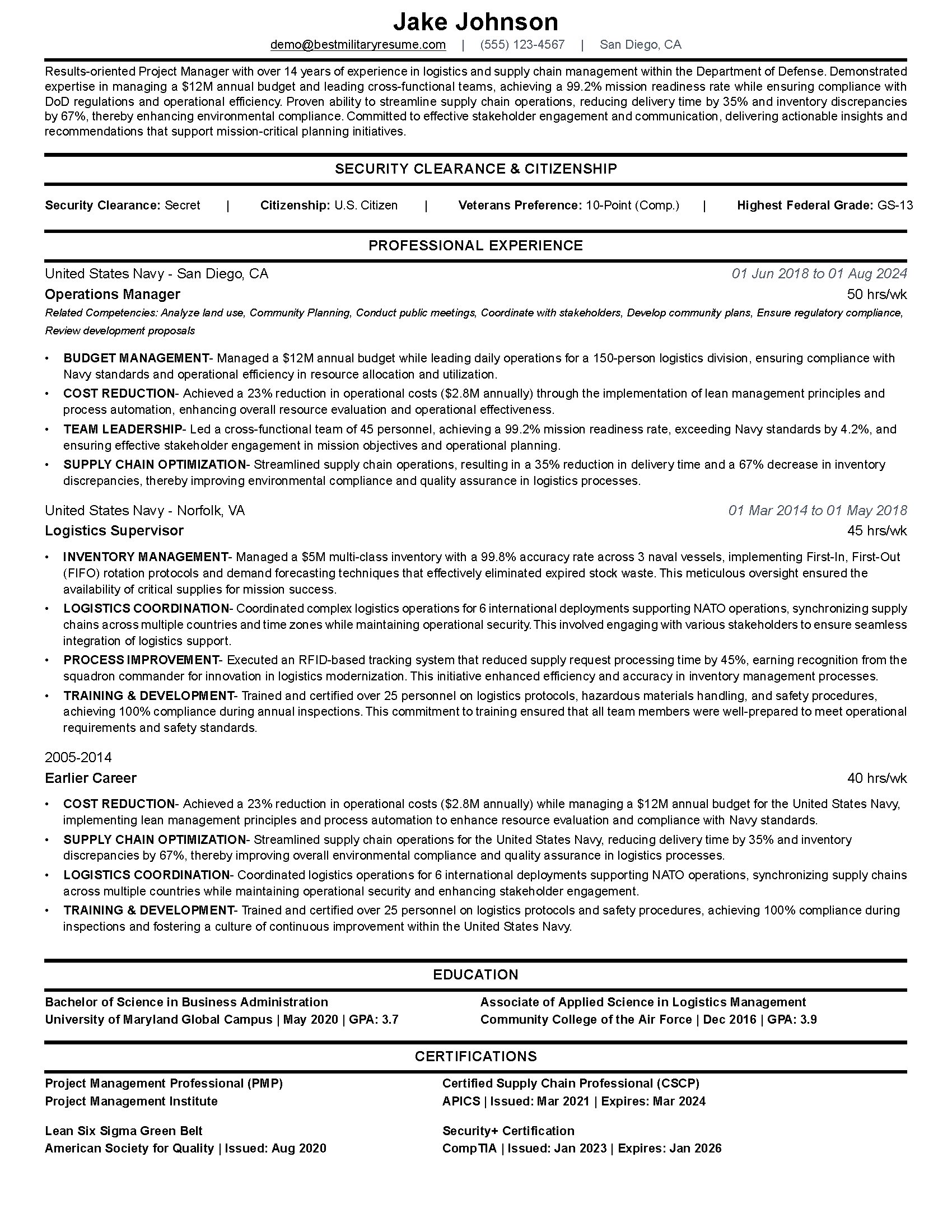
This matters for military resumes specifically because veterans tend to use formatting that looks professional but confuses parsers. Multi-column layouts, text boxes, graphics, icons next to contact info, creative section headers with all-caps styling — all of these can cause parsing errors that push your resume down the ranking.
"ATS does not reject your resume. It ranks it. Bad formatting means your keywords get misread, and you sink to the bottom of the list where nobody scrolls."
A key thing to remember: ATS does not reject resumes. It ranks them. A well-formatted resume with strong keyword matches surfaces to the top of the list, and that is the stack the hiring manager actually reviews. A poorly formatted resume with the same qualifications sinks below dozens of other applicants. The hiring manager never scrolls that far. Your formatting did not get you rejected — it made you invisible.
Which Fonts Actually Parse Cleanly?
Font choice matters more than most people realize. Not because ATS systems cannot technically read certain fonts — modern parsers handle most standard fonts fine. The issue is consistency and rendering. Some fonts cause character-spacing issues that merge words together or split them apart during parsing. Others render differently across operating systems, which means the resume you built on your Mac looks different when the parser processes it on a Windows server.
Stick with these fonts. They parse cleanly across every major ATS platform:
- Calibri — the default in Microsoft Word since 2007. Clean, modern, universal parsing. This is the safest choice if you want to set it and forget it.
- Arial — slightly wider than Calibri, which means you fit fewer words per line, but parsing is flawless.
- Garamond — serif font that reads well and parses cleanly. Good option if you want a more traditional look without sacrificing parsing.
- Cambria — another Microsoft default, serif, works well for federal and corporate applications.
- Helvetica — standard on Mac systems, parses perfectly. Just know it will render as Arial on Windows machines that do not have it installed.
Script fonts (Brush Script, Lucida Handwriting), decorative fonts (Papyrus, Comic Sans, Impact), ultra-thin fonts (Didot, Futura Light at small sizes), and custom/downloaded fonts the parser may not recognize.
Calibri, Arial, Garamond, Cambria, Helvetica, Georgia, Times New Roman. Standard system fonts that every parser recognizes and processes without character-spacing errors.
Font size matters too. Body text should be 10-12 points. Go smaller than 10 and some parsers struggle with character recognition, especially on scanned or printed-then-uploaded versions. Go larger than 12 and you are wasting space that could hold keywords and accomplishments. Section headers can go up to 14 points — bigger than that is unnecessary and eats real estate. Your name at the top can be 16-18 points, but keep it on a single line.
One more thing on fonts: use one font for the entire document. Two at the absolute maximum — one for headings, one for body text. Veterans sometimes use three or four fonts thinking it looks polished. The parser does not care about polish. It cares about consistency. Multiple fonts increase the chance of parsing errors at section boundaries.
What Margins Should You Use for ATS?
Margins affect two things: how much content you can fit on the page, and whether the parser clips text at the edges. Both matter, but for different reasons.
The safe range is 0.5 inches to 1 inch on all sides. Here is how to think about it:
- 1-inch margins — the Word default. Safe, conservative, gives you the most whitespace. Good for resumes that are already filling two full pages without cramming. If you are unsure whether your resume should be one page or two pages, figure that out before adjusting margins.
- 0.75-inch margins — the sweet spot for most military resumes. Gives you roughly 15% more usable space per page compared to 1-inch, without any parsing risk.
- 0.5-inch margins — the minimum you should go. Some printers clip at 0.5 inches, and a few older ATS systems have trouble parsing text that sits this close to the edge. Usable, but only if you genuinely need the space.
Below 0.5 inches, you are asking for trouble. Text gets clipped during PDF conversion, printers cut it off, and some parsers simply ignore content that falls outside expected boundaries. I have seen resumes where an entire contact line — phone number, email — was invisible to the parser because it sat in a 0.25-inch margin area.
Do Not Use Headers or Footers for Contact Info
Many ATS parsers skip header and footer zones entirely. If your name, phone number, or email is in the document header, the system may never see it. Keep all contact information in the main body of the document.
Also — and this catches many veterans — do not put your contact information in the header or footer of the Word document. Headers and footers sit outside the main text area. Many ATS parsers skip them completely. Your name, phone, email, and LinkedIn URL should all be in the main body text at the top of page one. Not in a text box, not in a header zone — just plain text, top of the document.
Which Formatting Choices Break ATS Parsing?
Fonts and margins are the basics. But there are several other formatting decisions that directly affect whether the parser reads your resume correctly. Here are the ones I see military veterans get wrong most often.
Columns and Text Boxes
Two-column resume layouts look clean to the human eye. The problem is that many ATS parsers read documents in a single stream, left to right, top to bottom. When you use columns, the parser reads across both columns on the same line — merging unrelated content together. Your job title from column A gets fused with a skill from column B. The result is gibberish in the parsed output.
Text boxes have the same problem. Word treats text boxes as separate objects that float on the page. Some parsers cannot read text box content at all — it just vanishes. Others read it out of order. Either way, the content gets mangled.
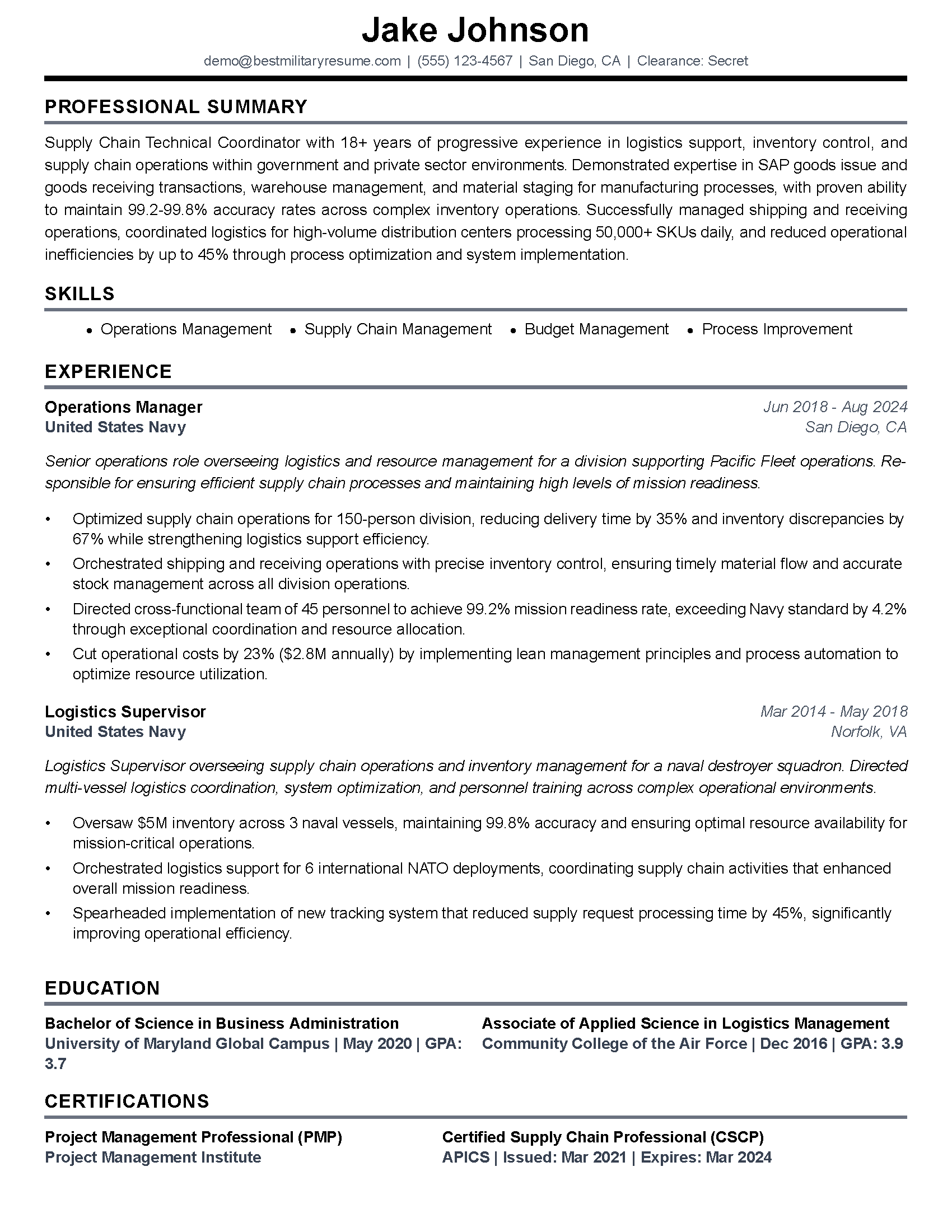
Stick to a single-column layout. If you want visual separation between sections, use horizontal lines (simple ones — not decorative) or bold section headers. That gives you structure without confusing the parser.
Graphics, Icons, and Images
Skill-level bars, star ratings, icons next to phone numbers and email addresses, branch logos, headshots — none of these are readable by ATS parsers. They get stripped out completely. If your phone number has a phone icon next to it with no text label, the parser may not categorize that line as contact information.
I get the instinct. After years in the military, you are used to sharp-looking documents. But the resume is not a presentation — it is a data document first. Once it passes the parser and a hiring manager opens it, they will see your clean formatting. Understanding where recruiters actually look first on your resume helps you prioritize which sections need the cleanest formatting. But the parser needs plain text to work with.
Tables for Layout
Some resume templates use invisible tables to align content. For example, putting dates in one column and job descriptions in another using a two-column table. This can work on some ATS systems, but it fails on others. The parser reads cell by cell, and the order it reads them is not always what you expect. Sometimes it reads all of column one, then all of column two — meaning your dates get separated from your job descriptions.
If you need dates aligned to the right side of the page, use a right-aligned tab stop. That keeps everything in a single text flow while still looking formatted.
Format Elements That Cause Parsing Errors
Multi-column layouts
Parser reads across columns, merging unrelated content into gibberish
Text boxes and floating objects
Content inside text boxes may be invisible to the parser or read out of order
Graphics and skill-level bars
Completely stripped by parsers — any info conveyed only by images disappears
Tables used for layout alignment
Cell reading order varies by parser — dates get separated from job descriptions
Contact info in headers/footers
Many parsers skip document headers and footers — your name and email vanish
How Should You Format Section Headers for ATS?
Section headers are how the parser knows where your work experience ends and your education begins. If your headers are unclear, creative, or formatted in a way the parser does not recognize, the entire section below gets miscategorized.
Use standard section header names. These are the ones every ATS system recognizes:
- Professional Experience or Work Experience (not "Career Highlights," not "Where I Have Served," not "Mission History")
- Education (not "Academic Background" or "Learning and Development")
- Skills or Technical Skills (not "Core Competencies" or "Areas of Expertise" — some parsers recognize these, but not all)
- Certifications (not "Professional Development" as a catch-all)
- Summary or Professional Summary (not "Objective" — that is an outdated format regardless of ATS)
I know it is tempting to use military-flavored headers. "Operational Experience" sounds better to you than "Work Experience." But the parser does not share your preference. It is scanning for exact label matches to categorize content. If it does not recognize your header, the content below it gets dumped into an "other" field that many hiring managers never check. For more on translating military language effectively, check out military to civilian job title translation.
Format-wise, make headers bold and slightly larger (12-14 point). Do not use all-caps for headers — some parsers treat all-caps text as a single block rather than parsing individual words. A bold, title-case header at 13 points is all you need. You can add a simple horizontal line below the header for visual separation, but do not use decorative dividers or colored bars.
Does File Format Matter — PDF or DOCX?
This is one of the most common questions I get from veterans, and we wrote a full breakdown of PDF vs DOCX for military resumes. The short answer is simpler than the internet makes it: both work fine. Modern ATS systems can parse both .docx and PDF files without issues. The old advice that "ATS cannot read PDFs" was true a decade ago. It is not true in 2026.
That said, there are a few things to watch for with each format:
DOCX advantages: What you see is what the parser gets. The text is already in a format the parser natively understands. No conversion step means fewer chances for something to go wrong.
PDF advantages: Your formatting stays locked. No matter what system opens it, the layout looks exactly as you designed it. This matters when a hiring manager finally opens your resume — they see what you intended.
PDF risk: If your PDF was created by scanning a paper document (image-based PDF), the parser cannot read it at all. It sees an image, not text. Always create PDFs by exporting from Word or saving as PDF — never by scanning a printout. You can test this by opening the PDF and trying to select text with your cursor. If you can highlight individual words, the parser can read it.
For a deeper comparison, our guide on PDF vs Word for USAJOBS uploads covers the federal-specific angle.
What About Bullet Points, Spacing, and Line Formatting?
Bullet points are the backbone of your experience section. For ATS parsing, standard round bullets (the default in Word) are the safest. Avoid custom bullets like arrows, checkmarks, diamonds, or dashes. Some parsers handle these fine; others misread them as text characters that get prepended to your bullet content.
Spacing between sections should be consistent. Use 6-12 points of space after each section header, and keep the same spacing throughout. Inconsistent spacing confuses parsers that use whitespace to detect section boundaries. Do not use multiple blank lines to create space — use paragraph spacing settings in Word instead.
Line spacing in body text should be single or 1.15. Anything wider than 1.5 wastes space without any parsing benefit. And avoid justified text alignment (where both left and right edges are straight). Justified text inserts variable spacing between words, which can cause parsing issues with compound keywords. Left-aligned text is cleaner for both parsers and human readers.
Key Takeaway
Use standard round bullets, single or 1.15 line spacing, left-aligned text, and consistent paragraph spacing throughout. These four choices eliminate the most common parsing errors in military resumes.
For date formatting, use a consistent pattern throughout. "Jan 2020 - Dec 2023" or "01/2020 - 12/2023" or "January 2020 - December 2023" — pick one and stick with it. Parsers use date formats to identify employment periods. Mixing formats (abbreviated months in one entry, full months in another) can confuse the parser into miscalculating your experience duration.
How Do Military Acronyms Affect ATS Parsing?
Military acronyms are a formatting question as much as a content question. The parser reads "NCOIC" as a single text string and tries to match it against keywords in the job posting. If the job posting says "Non-Commissioned Officer in Charge," you have zero keyword match on what should be an exact qualification match.
The fix is straightforward: spell it out first, then put the acronym in parentheses. "Non-Commissioned Officer in Charge (NCOIC)" gives the parser both versions to match against. Do this the first time each acronym appears. After that, you can use just the acronym.
This approach also helps when a hiring manager reads your resume. We see this constantly across BMR's 15,456+ veterans — hiring managers outside the DoD space do not always know what NCOER, PCS, MOS, or NCO stand for, even if they have some familiarity with the military. Spelling it out is not about dumbing it down. It is about making sure the parser matches your qualifications and the human reader understands them on the first pass. For more on this, see our breakdown on which military acronyms to keep, spell out, or drop.
There is a balance here. You do not need to spell out every single acronym. Common ones that appear in civilian job postings — like "DOD," "PMP," "OSHA," "CDL" — can stay as acronyms because the job posting likely uses them that way too. The goal is keyword alignment between your resume and the specific job posting, not a dictionary of every abbreviation you have ever used.
Can You Use ATS-Friendly Formatting and Still Look Professional?
This is the concern I hear from veterans all the time. If you strip out columns, graphics, icons, and creative headers, are you left with a boring wall of text that no one wants to read?
No. A well-formatted ATS-friendly resume looks clean, organized, and professional. You still have bold text for emphasis, consistent spacing for structure, clear section headers for navigation, and strong bullet points for accomplishments. That is what hiring managers actually want to see.
When I sit down to review a stack of resumes, the ones that stand out are the ones where I can find the information I need in seconds. Clear job titles, clear dates, clear bullet points that start with action verbs and include measurable results. That is what makes a resume look professional — not the color scheme or the two-column layout that the parser just mangled.
Think about it from the hiring manager side. They are looking at 50, 80, sometimes 200+ resumes for a single position. They are spending roughly six seconds on the first pass. Clean formatting means they find what they need fast. Creative formatting means they spend those six seconds trying to figure out where to look. For more on what hiring managers actually focus on during that scan, check out ATS-friendly resume tools for veterans.
A Quick Format Audit You Can Run Right Now
Open your resume and run through this in five minutes. You do not need any special tools — just your eyes and the formatting options in Word or Google Docs.
- Font check: Is it Calibri, Arial, Garamond, Cambria, or another standard system font? Is the body text between 10-12 points? Is there only one (or two max) fonts in the entire document?
- Margin check: Are margins between 0.5 and 1 inch on all sides? In Word, go to Layout > Margins to verify.
- Layout check: Is the resume single-column? Are there any text boxes or floating objects? Select all content (Ctrl+A) — if anything is NOT selected, it is in a text box or header/footer that the parser might miss.
- Header check: Are your section headers standard names (Work Experience, Education, Skills, Certifications)? Are they bold and slightly larger than body text, but not all-caps?
- Contact check: Is your name, phone, email, and LinkedIn in the main document body — not in the header/footer zone?
- Bullet check: Are you using standard round bullets? Are dates in a consistent format throughout?
- Acronym check: Are military-specific acronyms spelled out on first use?
If you passed all seven, your formatting is solid. The parser will read your content cleanly, and your keywords will match as intended. The rest comes down to what you actually wrote — which is a content problem, not a formatting problem.
If you want to skip the manual formatting work entirely, BMR's Resume Builder generates ATS-optimized formatting automatically. The templates are built on these exact rules — standard fonts, clean margins, single-column layout, proper section headers — so you can focus on translating your experience rather than fighting with Word settings.
What to Do Next
Formatting is the foundation, but it is only the foundation. A perfectly formatted resume with weak content still sinks to the bottom. Once your fonts, margins, and layout are squared away, the real work is translating your military experience into language that matches the job posting you are targeting.
Start with the format audit above. Fix anything that fails. Then move on to the content — your job titles, your bullet points, your keyword alignment with the specific position. If you are transitioning from a specialized MOS or rating, our guides on translating combat and special operations experience and positioning 20+ years of service cover the content side in detail.
And if you want the whole thing handled — formatting, translation, keyword optimization, tailored to each job posting — build your resume with BMR. It is free for your first two tailored resumes, and it is built by a veteran who spent 1.5 years learning these rules the hard way.
Frequently Asked Questions
What is the best font for a military resume?
What margins should I use for an ATS-friendly resume?
Can ATS read PDF resumes?
Do two-column resume layouts work with ATS?
Should I spell out military acronyms on my resume?
Does ATS reject resumes with bad formatting?
Can I use graphics or icons on my military resume?
What section headers does ATS recognize?
About the Author
Brad Tachi is the CEO and founder of Best Military Resume and a 2025 Military Friendly Vetrepreneur of the Year award recipient for overseas excellence. A former U.S. Navy Diver with over 20 years of combined military, private sector, and federal government experience, Brad brings unparalleled expertise to help veterans and military service members successfully transition to rewarding civilian careers. Having personally navigated the military-to-civilian transition, Brad deeply understands the challenges veterans face and specializes in translating military experience into compelling resumes that capture the attention of civilian employers. Through Best Military Resume, Brad has helped thousands of service members land their dream jobs by providing expert resume writing, career coaching, and job search strategies tailored specifically for the veteran community.